

Let's Learn IntelliJ IDEA
Posted on January 27, 2026 • 9 minutes • 1712 words • Other languages: Korean, 日本語
Table of contents
All keyboard shortcuts introduced in this post are based on Mac OS.
0. Introduction: IDE Proficiency Directly Impacts Productivity
After the era of vi, which involved editing text in terminals, GUI-based IDEs like Turbo Pascal and Visual Basic began to emerge in the 1980s. Furthermore, modern IDEs that appeared after the 2000s, such as VS Code, Eclipse, and IntelliJ, evolved beyond mere ’editors’ by supporting code auto-completion, real-time error checking, project management, version control integration, and refactoring tools, transforming IDEs into intelligent tools. Today’s IDEs contain decades of accumulated know-how for boosting developer productivity. Even now, as AI Code Generation capabilities continue to expand, IDE proficiency remains essential for editing and fine-tuning the vast amounts of code that AI produces. That’s why I decided to write this post to reassess my own IDE skills at this particular moment.
1. About IntelliJ IDEA

Among IDEs, I want to focus on IntelliJ IDEA, which I’ve used most extensively while developing in Java and Kotlin. In 2000, Renamer, a tool to help with inefficient tasks, was first released, and it later evolved into IntelliJ, providing essential tools for Java and Kotlin development. Since then, JetBrains has grown into a leading IDE provider over the decades, securing more than 15 million users worldwide. In 2009, they also released the open-source licensed Community Edition for free, increasing IDE accessibility. In 2014, they introduced MPS to support Domain-Specific Languages, and in 2019, they enhanced Kotlin support. Then, in version 2025.3, Community and Ultimate were unified, with core features offered for free while advanced features require a subscription.
IntelliJ IDEA itself runs on the JVM, with JetBrains Runtime based on OpenJDK 21 bundled inside. It integrates with Git by default for version control and also integrates with Docker to support locally or remotely running Docker engines.
IntelliJ supports various languages beyond Java and Kotlin, including Scala, Groovy, JavaScript, TypeScript, and Rust, and provides extensive support for the Spring Boot framework in particular. It also offers related tools and SQL plugins for data processing, allowing you to explore and edit schemas.
Recently, they’ve been focusing on providing AI-based automation features through JetBrains AI Assistant, including automated unit test generation based on the codebase. In version 2025.1, they made AI available for free without subscription barriers by providing unlimited access to local models.
That concludes the overview of IntelliJ IDEA. From the next chapter, let’s explore IntelliJ’s key features one by one.
2. Ways to Maximize Productivity
Rather than covering all of IntelliJ’s features broadly, let’s focus on the useful features that help boost productivity.
Live Templates
Live Template is a feature that lets you complete code templates just by typing abbreviations.
The most representative examples are psvm and sout, and here’s how they’re used:
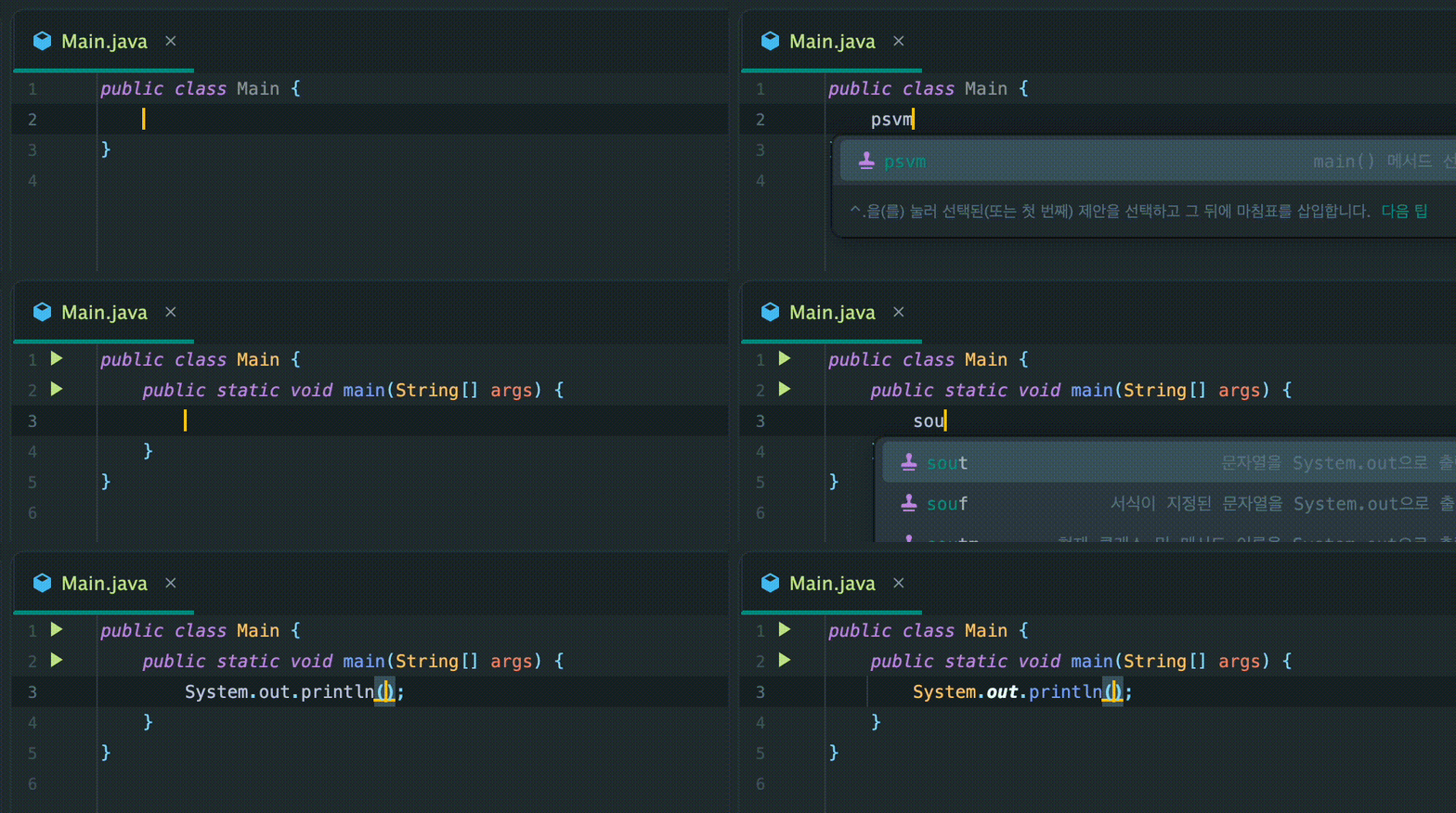
I believe that Live Templates are actually more effective for productivity when you identify frequently used code patterns yourself and create custom templates. Recently, I’ve been using IntelliJ, which provides auto-completion features, to solve coding test problems on Baekjoon Online Judge . However, unlike other platforms, Baekjoon receives parameters as program input rather than function arguments, requiring tedious input handling for every problem.
import java.io.BufferedReader;
import java.io.IOException;
import java.io.InputStreamReader;
import java.util.StringTokenizer;

public class J11050 {
    public static void main(String[] args) throws IOException {
        BufferedReader br = new BufferedReader(new InputStreamReader(System.in));
        StringTokenizer st = new StringTokenizer(br.readLine());
        int n = Integer.parseInt(st.nextToken());
        int k = Integer.parseInt(st.nextToken());

        int[][] dp = new int[n + 1][n + 1];

        for (int i = 0; i <= n; i++) {
            dp[i][0] = 1;
            dp[i][i] = 1;
        }

        for (int i = 2; i <= n; i++) {
            for (int j = 1; j < i; j++) {
                dp[i][j] = dp[i - 1][j] + dp[i - 1][j - 1];
            }
        }

        System.out.println(dp[n][k]);
    }
}
To solve Baekjoon problems, you commonly need IOException handling for input failure exceptions in the main method, and a BufferedReader creation process for receiving input. When input is space-separated, using StringTokenizer is also essential.
StringBuilder is also frequently used to store results sequentially as calculations proceed.
Creating variations of templates for different algorithm types like Graph or DP would also greatly help productivity.
However, for brevity, let’s just create a basic template here.
import java.io.BufferedReader;
import java.io.IOException;
import java.io.InputStreamReader;
import java.util.StringTokenizer;

public class $CLASS_NAME$ {
    public static void main(String[] args) throws IOException {
        BufferedReader br = new BufferedReader(new InputStreamReader(System.in));
        StringTokenizer st = new StringTokenizer(br.readLine());
        StringBuilder sb = new StringBuilder();

        int n = Integer.parseInt(st.nextToken());

        $END$

        System.out.print(sb);
    }
}
Here’s what it looks like in actual use:
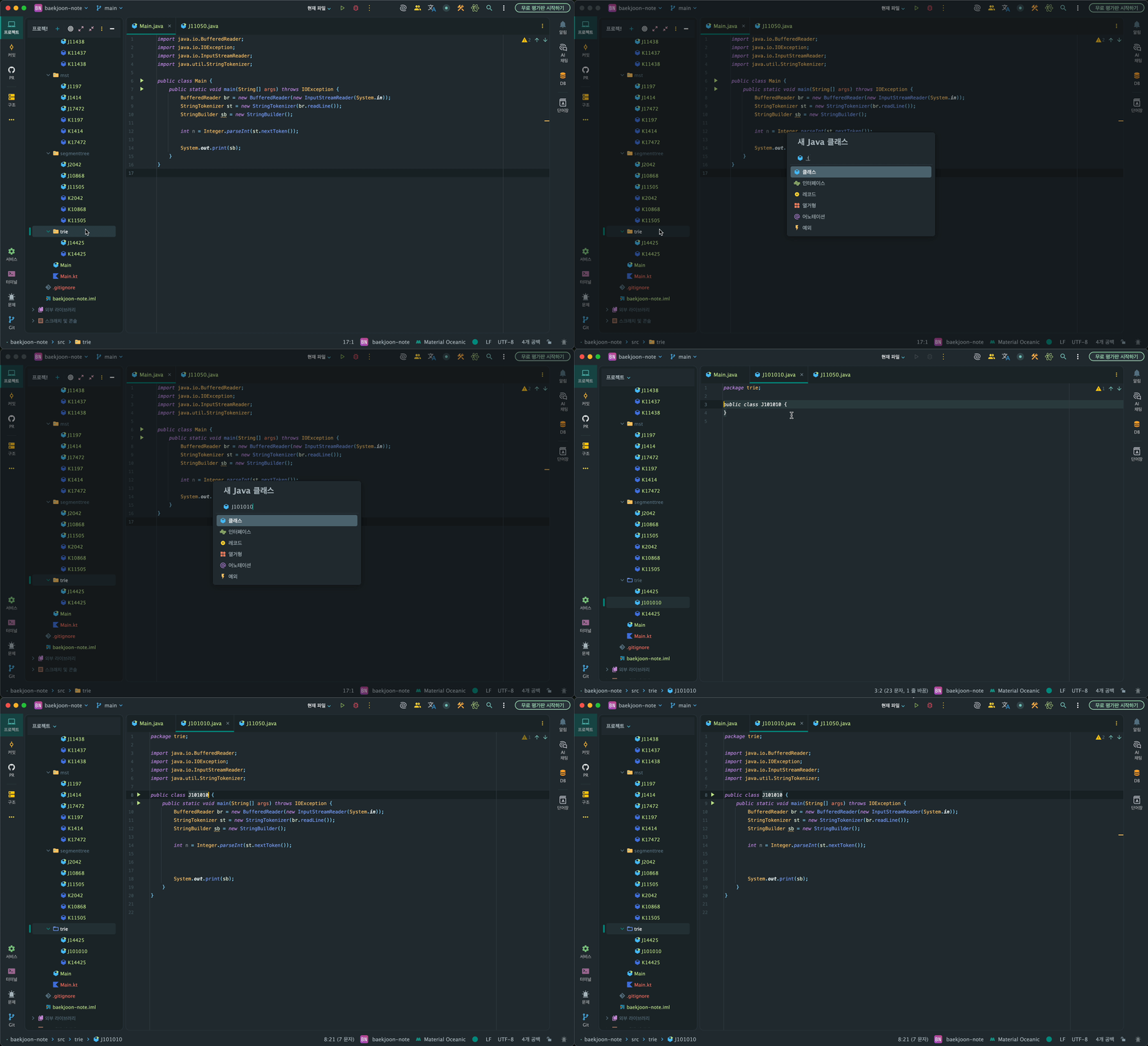
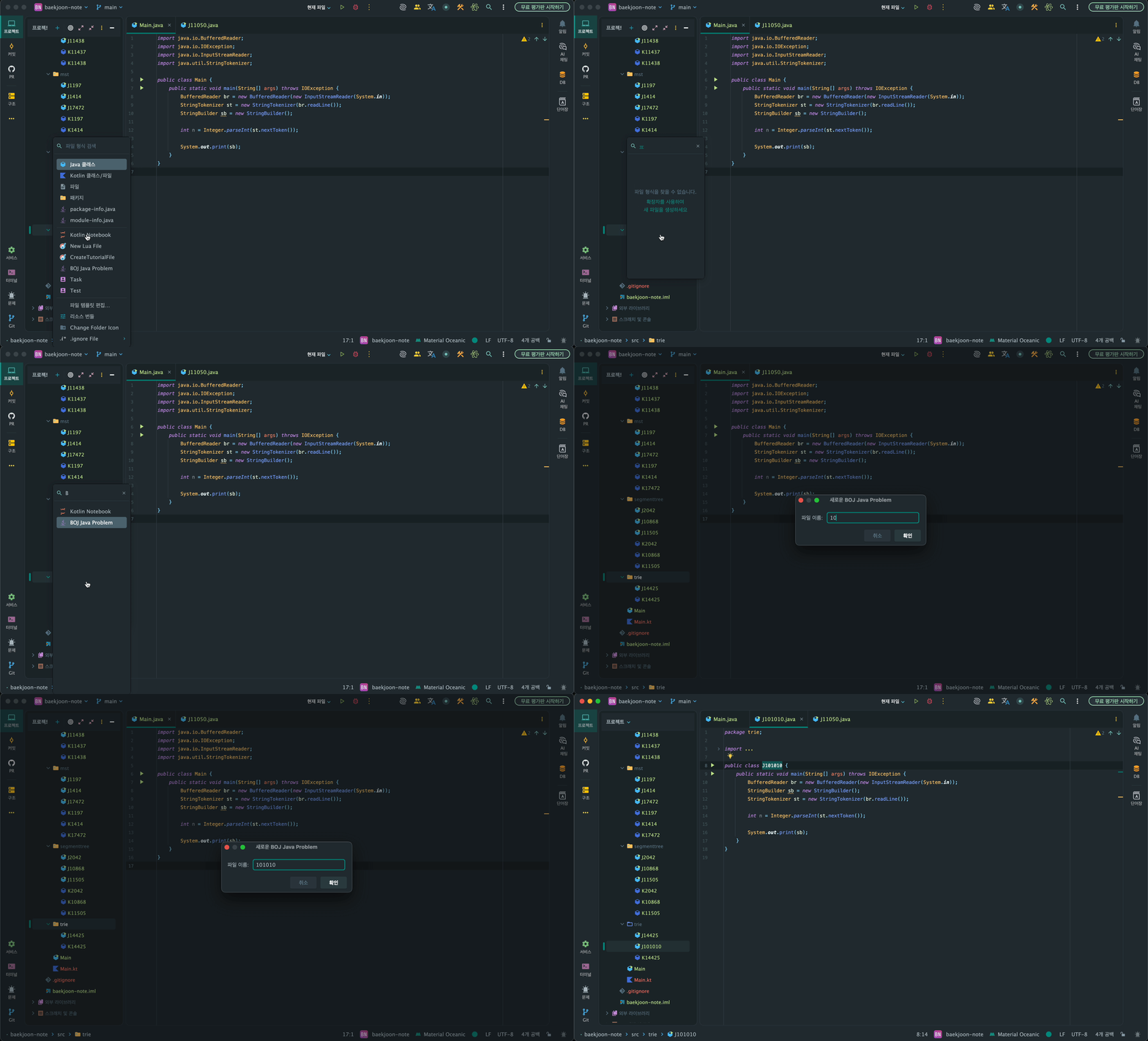
As a side note, I found it somewhat inconvenient to delete the existing class declaration and reapply the template, so after looking further, I discovered the File Template feature. This feature allows you to apply templates directly when creating a file, making it even more convenient.
Postfix Completion
I considered covering Code Completion as well, but since it’s a feature that automatically suggests options as you type, I figured it could be learned naturally.
Instead, while exploring various features worth studying, I discovered Postfix Completion and thought it would be good to briefly learn about it since I hadn’t used it much.
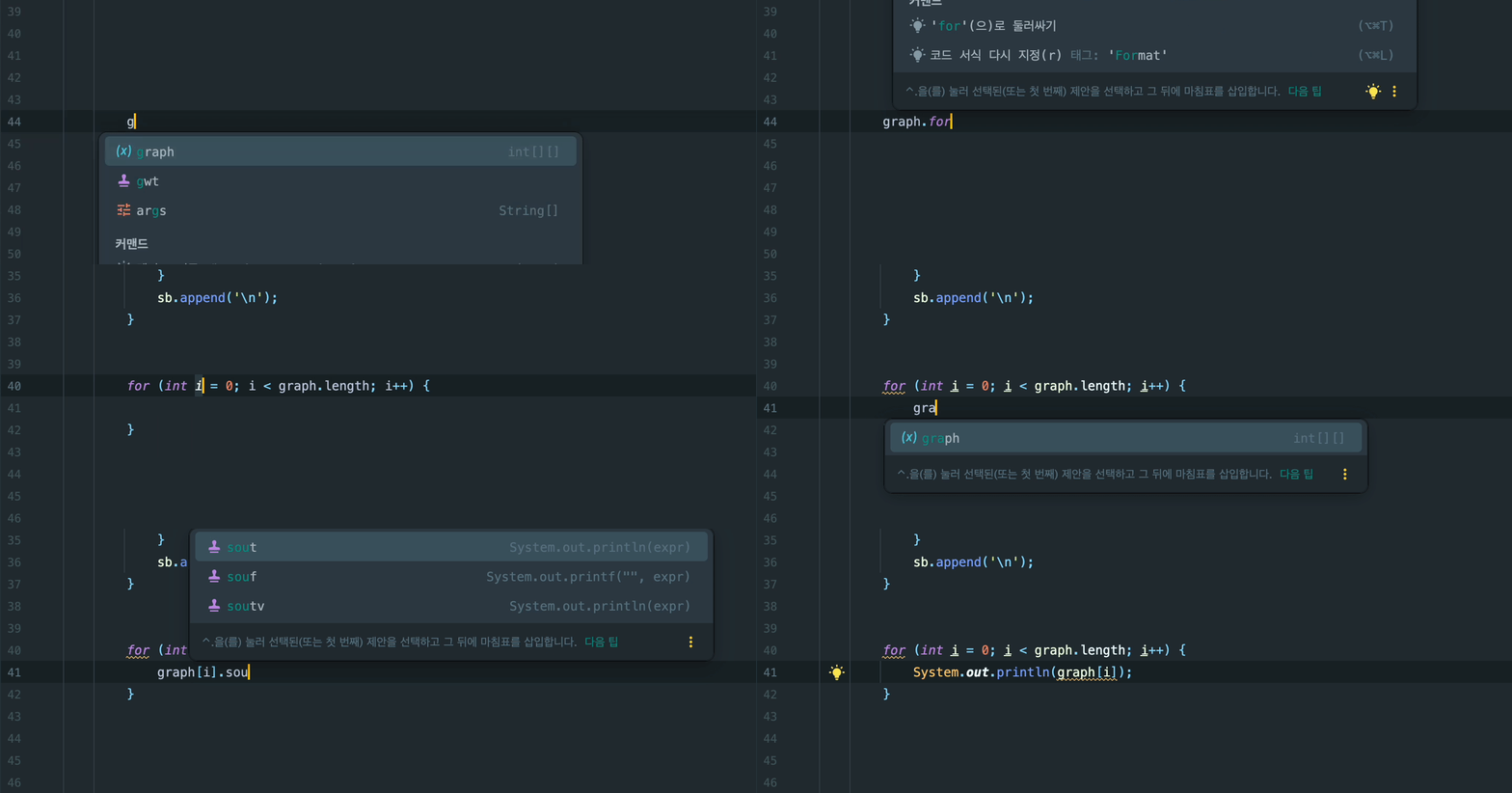
Postfix Completion is a feature that provides auto-completion based on ‘suffixes’ - you type the variable name first and then use auto-completion as if chaining methods.
It feels like commanding “create a for loop with this variable,” allowing developers to write logic following their stream of consciousness.
Note that abbreviations like fori and sout that exist in Live Templates can also be used in Postfix Completion.
Bookmark

This might seem off-topic, but in RTS games, there’s a ‘control group’ feature that lets you group units or buildings by role and quickly issue appropriate commands to each group when needed. IntelliJ provides a similar feature called Bookmark.
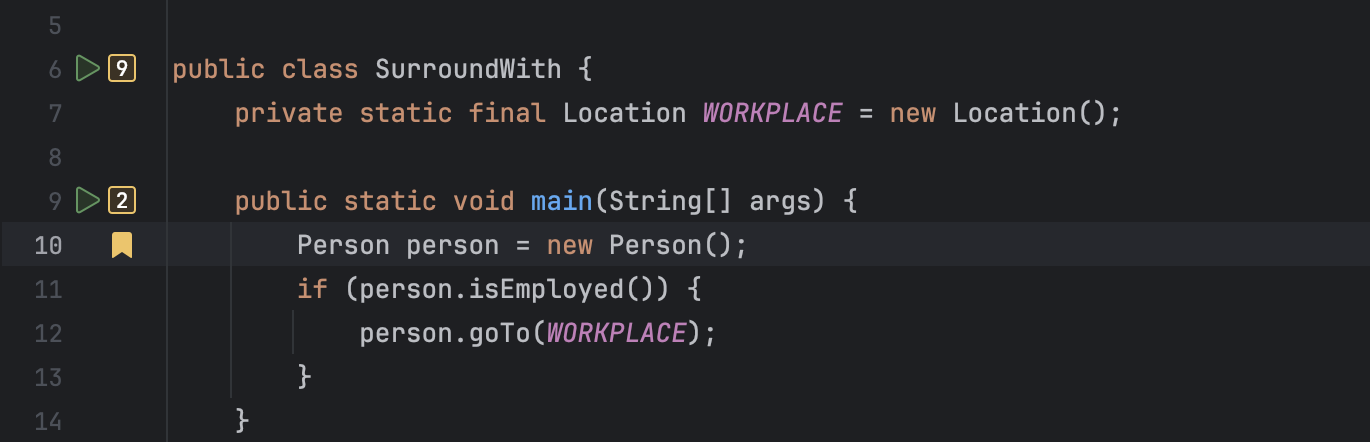
There are two types of Bookmarks: Anonymous and Mnemonic. Anonymous bookmarks have the advantage of allowing unlimited bookmarks, but to return to a designated bookmark, you need to list all bookmarks and find the one you want. Mnemonic bookmarks, on the other hand, allow direct navigation via shortcuts, but are limited to numbers 0-9 and letters A-Z. Personally, I think it’s more productive to carefully select code you frequently read and assign Mnemonic Bookmarks rather than indiscriminately setting Anonymous Bookmarks you can’t remember.
Here are the essential shortcuts for using Bookmark features:
- List Bookmarks:
⌘Cmd2 - Create Anonymous Bookmark:
F3 - Create Mnemonic Bookmark:
⌥OptionF3 - Navigate to designated Mnemonic Bookmark:
⌃Ctrl(designated mnemonic)
3. Debug More Thoroughly
I’m somewhat embarrassed to admit that I’ve tended to check results quickly rather than debug thoroughly. However, if this habit becomes ingrained, you lose the ability to carefully observe how programs operate. Moreover, with increasing dependence on AI codegen recently, developing thorough debugging skills will be even more useful.
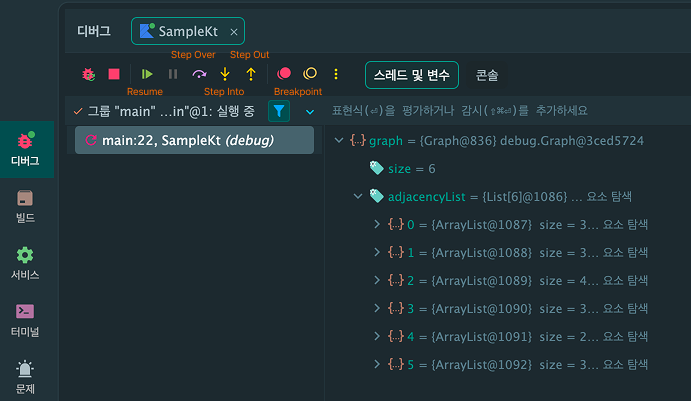
When using IntelliJ’s debugger, remember these four key features:
- Resume
- Step Over
- Step Into
- Step Out
Resume
- Function: Move to the next breakpoint
- Shortcut:
⌥Option⌘CmdR
Step Over
- Function: Move to the next line
- Shortcut:
F8
Step Into
- Function: Enter the method being called on the current line
- Shortcut:
F7
Step Out
- Function: Exit back out of the method after Step Into
- Shortcut:
⇧ShiftF8
4. Use Git Within the IDE
Actually, I’ve been using a GUI client called Fork for version control. I tried it once during an internship and have been using it ever since. While it’s good to use convenient tools as a developer, switching to a separate interface to perform various functions actually causes significant time loss. Therefore, using IntelliJ’s Git-related features allows for faster version control even while developing.
Memorize a few shortcuts and make sure to use them when appropriate.
Version Control
- Function: Open Git panel
- Shortcut:
⌘Cmd9
Show Diff
- Function: Check changes in the branch or commit
- Shortcut:
⌘CmdD
VCS Operation
- Function: View available Git commands at once
- Shortcut:
⌃CtrlV
Commit & Push
- Commit shortcut:
⌘CmdK - Commit & Push shortcut:
⌥Option⌘CmdK - Push shortcut:
⇧Shift⌘CmdK
5. Back to Shortcuts After All
When I first thought of this blog topic, I wanted to avoid writing a boring post that just lists shortcuts. However, I realized that memorizing shortcuts is ultimately necessary if you want to maximize productivity while using an IDE. In that spirit, I’ll conclude this post with a summary of IntelliJ’s core shortcuts.
Find Action
- Function: Open search window to explore all actions available in IntelliJ
- Shortcut:
⇧Shift⌘CmdA
Generate
- Function: List generatable items based on cursor position (packages, files, methods, etc.)
- Shortcut:
⌘CmdN
Run Related
- Run from current focus shortcut:
⌃Ctrl⇧ShiftR - Debug run shortcut:
⌃Ctrl⇧ShiftD - Run current configuration (selected in top dropdown) shortcut:
⌃CtrlR
Line Editing
- Duplicate line:
⌘CmdD - Delete line:
⌘Cmd⌫Del - Join string lines:
⌃Ctrl⇧ShiftJ
Line Movement
- Move line regardless of block:
⌥Option⇧Shift↑↓ - Move line within block only:
⇧Shift⌘Cmd↑↓ - Move element left/right:
⌥Option⇧Shift⌘Cmd←→
Cursor Movement
- Move cursor by word:
⌥Option←→ - Select while moving by word:
⌥Option⇧Shift←→ - Move to beginning/end of line:
fn←→ - Select entire line while moving:
⇧Shiftfn←→ - Page up/down:
fn↑↓
Code Inspection
- Check required parameters for constructors and methods:
⌘CmdP - View method implementation in popup:
⌥OptionSpace - View Javadoc:
fnF1
Focus Selection
- Expand/shrink focus range:
⌥Option↑↓(up expands, down shrinks) - Navigate to previous/next focus location:
⌘Cmd[] - Multi-focus:
⌥Option⌥Option↑↓ - Jump to error point:
F2
Search
- Search within current file:
⌘CmdF - Replace searched string:
⌘CmdR - Search across entire project:
⇧Shift⌘CmdF - Replace across entire project:
⇧Shift⌘CmdR - File search:
⇧Shift⌘CmdO(can search including package names) - Symbol search:
⌥Option⌘CmdO(frequently used for method search) - List recently opened files:
⌘CmdE - List recently edited files:
⇧Shift⌘CmdE - Find usages:
⌥OptionF7 - Structure View:
⌘Cmd7
Auto Completion
- Smart auto completion:
⌃Ctrl⇧ShiftSpace - Static method auto completion:
⌃CtrlSpaceSpace - Auto complete inherited methods to implement:
⌃CtrlI - List Live Templates:
⌘CmdJ
Refactoring
- Extract variable:
⌥Option⌘CmdV - Extract parameter:
⌥Option⌘CmdP - Extract method:
⌥Option⌘CmdM - Extract inner class:
F6 - Batch rename variables, classes, methods:
⌃CtrlF6 - Batch change type:
⇧Shift⌘CmdF6
Code Cleanup
- Remove unused imports:
⌃Ctrl⌥OptionO(automatically organized when Auto Import option is enabled) - Auto format:
⌥Option⌘CmdL